
“iCloud Storage Is Full.” Again.
The alert shows up when you least expect it. New photos stop uploading, your phone's backup stalls, and Apple gives you two options.
After the 200 GB plan comes the 2 TB one. There's nothing in between.
Whatever you remove from iCloud disappears from all your devices. You have to pick which memory goes.
Neither one fixes it. If you pay, your library keeps growing and the alert comes back with the next plan. If you delete, you lose exactly what you wanted to keep.
Maybe some of this sounds familiar:
- You pay for iCloud every month and the “full” alert comes back anyway.
- You turned on “Optimize iPhone Storage” and iCloud stayed full. That option makes room on your phone: in iCloud, the originals take up just as much.
- You deleted videos and the space never showed up. They keep taking up room for 30 days in “Recently Deleted”.
- You moved them to your computer, shrank them, uploaded them again, and they came back without their date or location.
The worst part is having to choose. The first steps, the wedding, the last birthday with Grandpa: one of them has to go to make room for tomorrow's video.
Keeping your memories shouldn't cost you a little more every year.
The app Apple doesn't want you to use.
Apple doesn't give you a way to shrink the videos in your library. It doesn't show you which ones take up the most space, either: Photos doesn't sort them by size, and the list of the largest ones is hidden in iPhone Settings, far away from your photos. Its business is getting you to pay more every month.
This app does what Photos doesn't: it shows you the largest videos first, and shrinks them.
Make the same videos take up less space.
A minute of 4K video takes up hundreds of megabytes, and your library holds years of it. The same video can take up a fraction of that and look almost the same.
That's the typical saving in 4K: 100 GB shrinks to about 15. Press the button and watch.
- −85%4K videos
- −70%Older videos, up to 2017
- −30 to 45%Recent 1080p videos
That's the typical saving, measured video by video. The app leaves alone the ones that are already small, or that would barely shrink.
It happened to me with the 2 TB plan.

Francisco XYour go-to tech, with 27 years in the trade
This year the alert came for me: my 2 TB plan was almost full, and the next one up is 6 TB.
I started looking at what was filling it. A lifetime of photos, almost 59,000, took up 86 GB. The rest was video: 10,772 videos, 169 hours, over 1.2 TB.
I tried shrinking one. A 1.08 GB 4K video came out at 100 MB. I could have saved even more by accepting a slight loss. I chose not to let it show.
Then I built the app, with two rules. They're my memories, so I decide what gets deleted. And every video goes back where it was: its date, its album, the library I share with my family.
Three steps.
- Open the app on your Mac
Every video in your library shows up, from largest to smallest. The ones filling your iCloud are at the top.
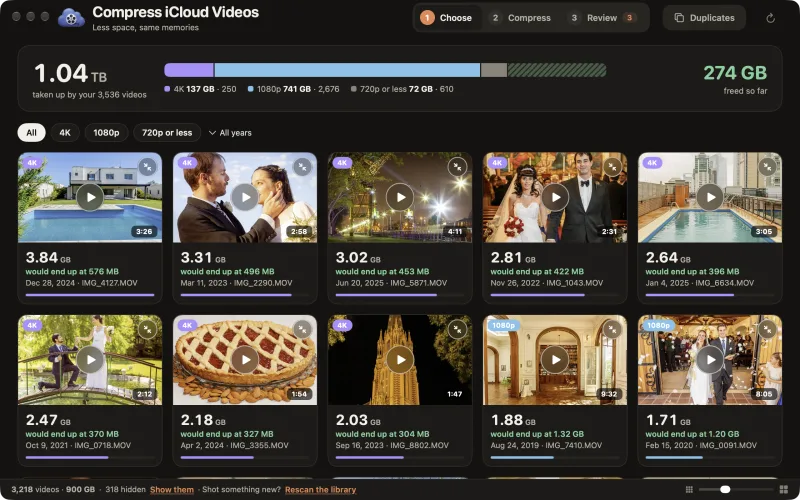
- Choose which ones to shrink
Video by video, the app looks for the smallest size where the difference barely shows. The compressed copy goes into Photos, next to the original.
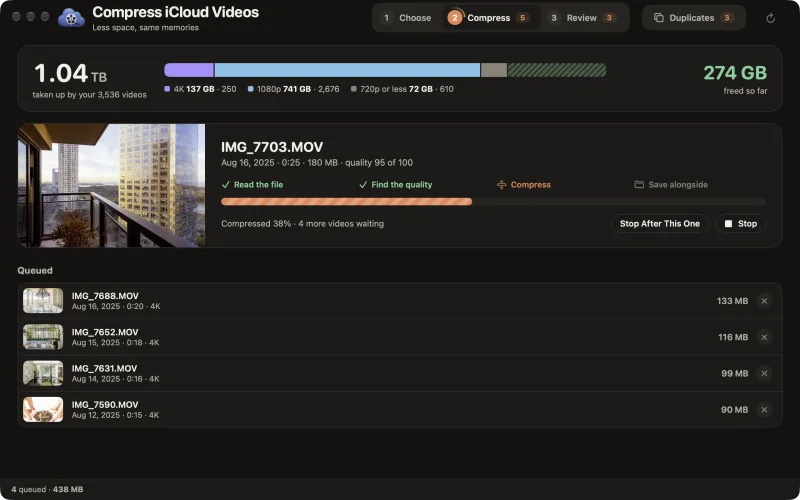
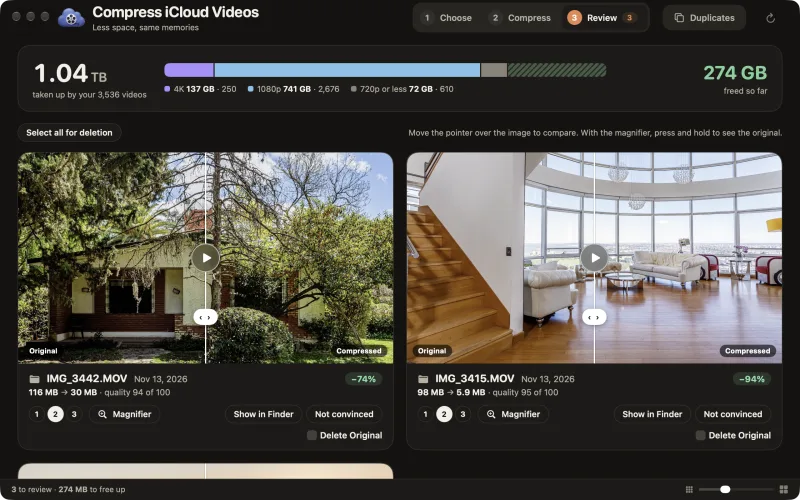
- Compare and keep the light one
In “Review” you see both. When you delete the original, iCloud gets the space back.
From the Finder or from Photos: just drag it in.
Videos from a camera, ones people sent you, or ones you saved in a folder: drag them onto the window and the compressed copy lands next to the original, with “(compressed)” in its name. The original isn't touched until you delete it yourself in “Review”: then it goes to the Trash and the compressed copy takes its name. Videos in iCloud Drive that aren't downloaded yet work too: the app downloads them first.
While you're browsing your photos, drag a video onto the app's window and it joins the queue like any other: the compressed copy goes back to Photos with its date and albums.
What doesn't change.
- The date and location. Also the lens, the title and the keywords.
- The albums. And the Shared Library with your family.
- The original. It stays there until you delete it in “Review”. The app doesn't delete anything on its own.
- Your privacy. Everything happens on your Mac. Your videos aren't uploaded anywhere else.
What does change, so you know up front. 4K videos end up in 1080p, which is Full HD. In Cinematic and slow-motion videos, the effect gets baked into the compressed copy, and the app warns you first. And the space in iCloud shows up when you empty “Recently Deleted”, or by itself after 30 days.
How many copies of the same photo do you have?
Photos merges exact duplicates. It misses the copies that went through AirDrop, WhatsApp or Messages, converted videos and edited photos: they aren't identical anymore, and they take up space twice.
“Duplicates” finds them using what Photos already has on your Mac, without downloading anything from iCloud. In my library, with about 70,000 photos and videos, it took about 15 seconds and found 577 groups of photos and 20 of videos.
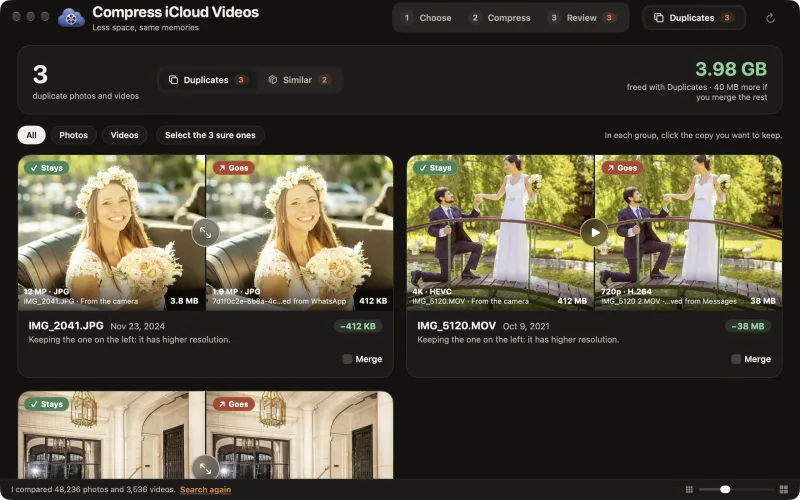
For photos, it picks the way Photos does: Live Photo over a still, higher resolution, HEIC over JPG. For videos, the higher resolution, and the camera original over the conversion. File size doesn't count. And it gets the others' favorite, albums, captions and location. If you'd rather keep a different one, click it.
Nearly identical shots of the same moment, like three photos in a row of the same thing. A slider sets how similar they have to be, and you click the ones you don't need.
What doesn't carry over, so you know up front: faces you named by hand, and Memories. If the copy that goes has an edit of yours, that edit is lost, and the app warns you before merging. Anything doubtful gets flagged so you can look at it yourself, and nothing is deleted until you confirm it: Photos asks you, and whatever goes stays 30 days in “Recently Deleted”.
What people ask the most.
The usual iCloud questions
Why didn't “Optimize Storage” free up my iCloud?
Because that option makes room on your phone or your Mac: it keeps lightweight versions there and leaves the full originals in iCloud. In iCloud they take up just as much as before.
This app shrinks exactly those originals.
How do I know which videos take up the most space?
Not in the Photos app: it doesn't sort by size. On the iPhone the list exists, but it's tucked away in Settings, General, iPhone Storage, in a menu apart from your photos.
This app shows you all of them as soon as you open it, from largest to smallest, with the size each one would end up at.
I pay for iCloud and my iPhone is still full. Will this fix it?
What it frees up is space in iCloud, which all your devices share. If you also keep the originals on your iPhone, the lighter video takes up less space there too.
With “Optimize iPhone Storage” turned on, the iPhone already keeps lightweight versions and decides on its own how much space they take.
If I delete a video from iCloud, is it gone everywhere?
Yes: with iCloud Photos, whatever you delete disappears from your iPhone, your iPad and your Mac. That's why the app doesn't delete anything on its own.
First it puts the compressed copy in Photos, next to the original, and you decide in “Review” which one goes.
Can you tell the difference?
Barely. The app compares each compressed video with the original and looks for the smallest size that looks almost the same, one by one. 4K videos end up in 1080p, which is Full HD.
Before you delete anything, “Review” shows you both side by side, and the arrow keys take you from one video to the next.
What if I change my mind?
The original stays in Photos until you delete it yourself in “Review”. And after you delete it, Photos keeps it for 30 days in “Recently Deleted”, where you can recover it.
I use an iPhone. Do I need a Mac?
Yes: the app is for Macs with Apple silicon (M1 or later) and macOS 14 or later.
But there's only one iCloud Photos library: what you shrink on the Mac frees up space for your iPhone and iPad too.
I have repeated photos from WhatsApp and AirDrop. Will it find them?
Yes. Photos only merges identical ones, and those copies aren't identical anymore: along the way they change size or format. “Duplicates” groups them anyway, along with converted videos and edited photos.
When it isn't sure two are the same, it tells you so you can look at them before merging, and “Select the sure ones” leaves them out.
How much does it cost?
Nothing: it's free during launch. Leave your email and download it.
The technical side
When does the free space show up in iCloud?
When you empty “Recently Deleted” in Photos. Until then, the originals you deleted keep taking up space in iCloud; if you don't empty it, Photos deletes them on its own after 30 days.
After you empty it, iCloud can take a while to show the new number. The app reminds you every time you delete.
Will it mess up the order of my library?
No. The compressed copy keeps the original's capture date and time, to the second, so it shows up in the same spot in your library, among that day's videos.
The app checks this before letting you delete the original: if the date, the duration or the location don't match, it won't let you delete it.
Does it work with the Shared Library?
Yes. If the original was in the Shared Library with your family, the compressed copy goes back there, directly and without opening Photos. Only if that fails does it use the Photos menu, and then it asks for the Accessibility permission.
If something goes wrong, “Review” tells you and won't let you delete the original until the compressed copy is in the Shared Library. Otherwise your family would be left without the video.
What video details does it keep?
The capture date and time, the location, the camera details (lens, focal length and aperture), the title, the caption, the keywords, the favorite and the albums it was in. The file name stays the same.
What changes: 4K videos become 1080p, and if the video had Dolby Vision, it ends up in standard HDR (HLG).
What about Cinematic, slow-motion and edited videos?
They work too, and the app warns you before compressing them. In the compressed copy the effect gets baked in: afterwards you can't change the Cinematic blur, the slow-motion section or the edit in Photos anymore.
How long does it take?
It depends on the Mac and the video. On a Mac with an M4 chip, compressing a 4K video takes between a third and half of its running time, plus however long it takes to download it from iCloud.
You can choose several and leave it working.
Do my videos get uploaded anywhere?
No. Everything happens on your Mac: the app downloads the original from iCloud, compresses it there and puts it back in Photos, which uploads it to your iCloud like any other video.
The only thing the app goes online for on its own is checking for updates, and only when you ask it to.
Two endings.
The alert will come back. Your library grows with every birthday, and the next plan costs more. Or one day, in a hurry, you delete the wrong video.
New photos upload on their own. Your backup works again. And every video stays on its date and in its album, ready whenever you want to watch it.
Less space, same memories.
Francisco X
Download it for free.
Leave your email and I'll send you the link; it also shows up right here. Now and then I'll write to you with a tip; you can unsubscribe in one click.
Under 30 MB to download: amazing that something so small frees up so much space.
Download Compress iCloud Videos Mac with Apple silicon · macOS 14+
Open the .dmg file and drag the app to Applications. The first time, your Mac asks whether you want to open an app downloaded from the internet: click Open.
P.S. If you use an iPhone and also have a Mac, you're all set. There's only one iCloud Photos library: what you shrink on the Mac frees up iCloud space for all your devices.
 Organizador de Recibos
 ChipID
 Speak Emoji
 Achicar PDF
 Riesgo Pais App
 Liturgia de las Horas App
 DoubleMouse
 Cardinal